Browser extension
How to use WordySpot
Everything the extension does on a page, shown on a real one. Open any article, story or book chapter and it starts by itself: there is nothing to switch on.
1
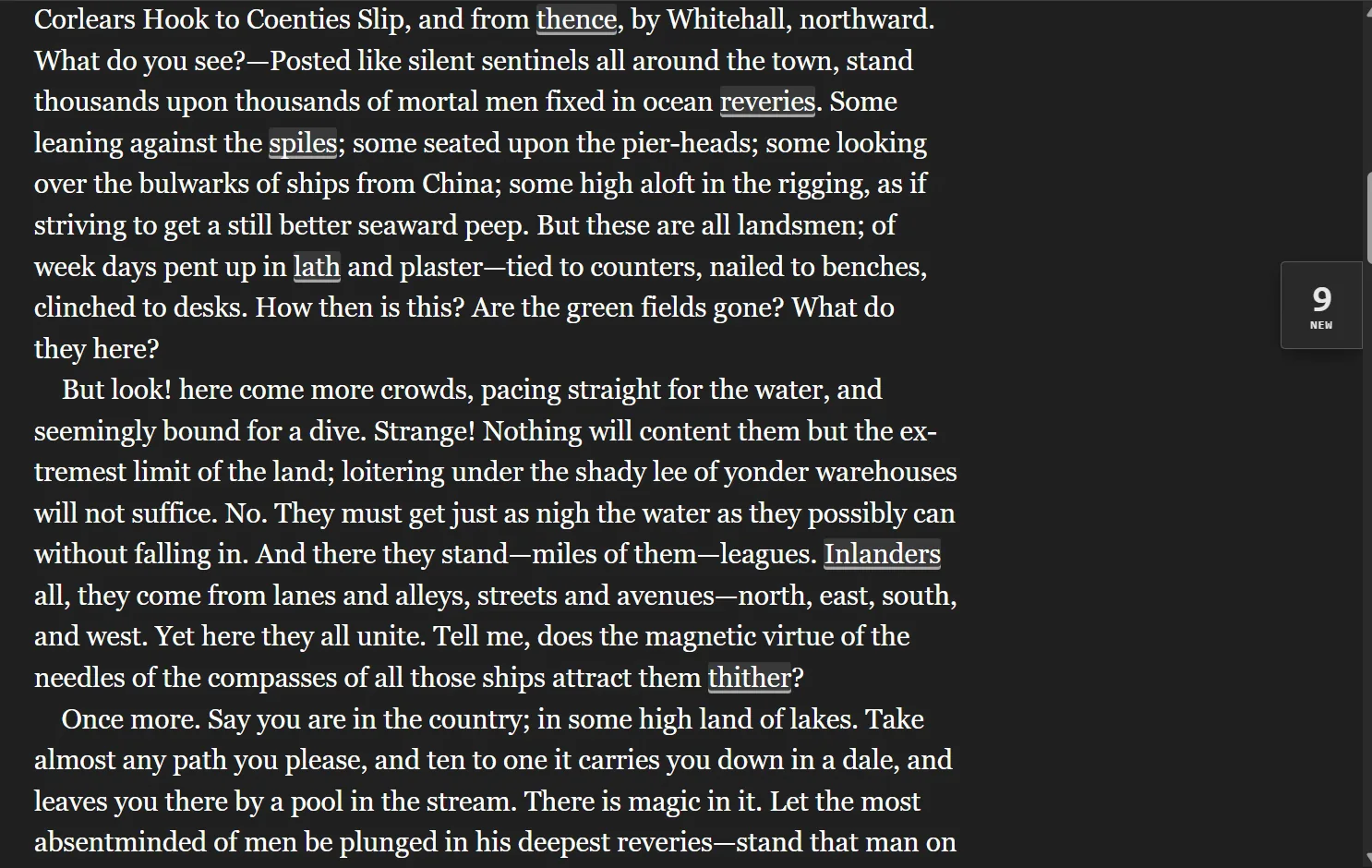
Underlined words
When a page opens, WordySpot underlines the words that are probably new to you. It leaves out the most common English words, and every word you have marked Known or Ignore.
- A word is underlined the first three times it appears on a page, not every time.
- Words you are learning stay underlined, so you keep meeting them.
- The WordySpot button in your browser’s toolbar shows how many new words the page has; on a phone, so does a small tab at the edge of the page. Either one opens the panel.
Too many words underlined, or too few? Move Words you already know in your profile. It decides how common a word must be to be left alone, on the website and in the extension.

2
The word card
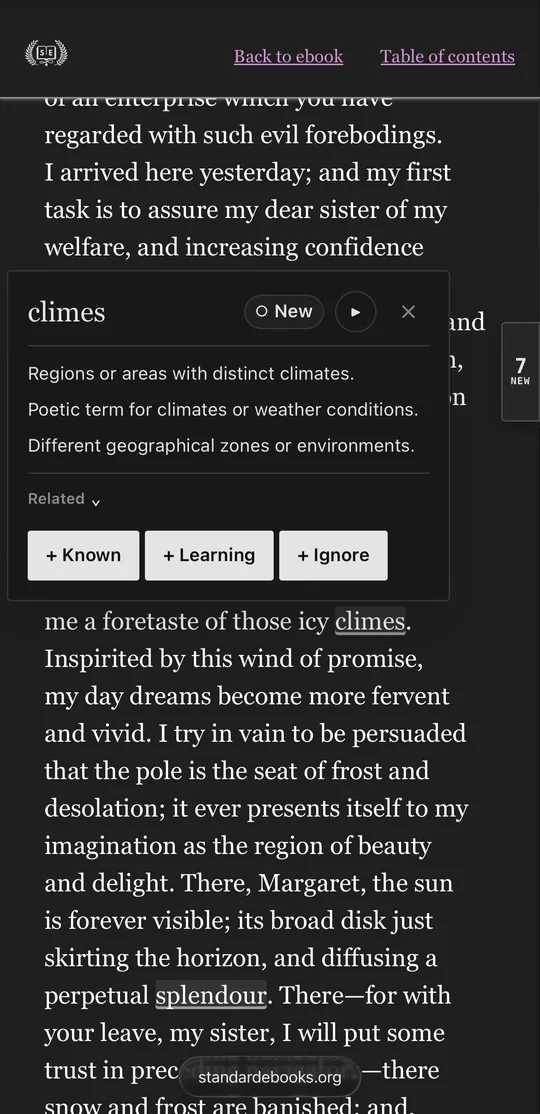
Point at an underlined word and its card opens over the page; on a phone, tap the word. The card has:
- short definitions written for learners,
- ▶ to hear the word,
- Related, for words connected to it,
- and three buttons that sort it, explained next.
Move the pointer away, press Esc, or use × to close it.
3
Known, Learning, Ignore
- Known
- You know it. It stops being underlined, on every page, and so do its other forms.
- Learning
- You want to learn it. It is saved to your Learning list and stays underlined, so each time it turns up you can check it again.
- Ignore
- Not worth learning: a name, a made-up word, a typo. It stops being underlined and stays out of your Learning list.
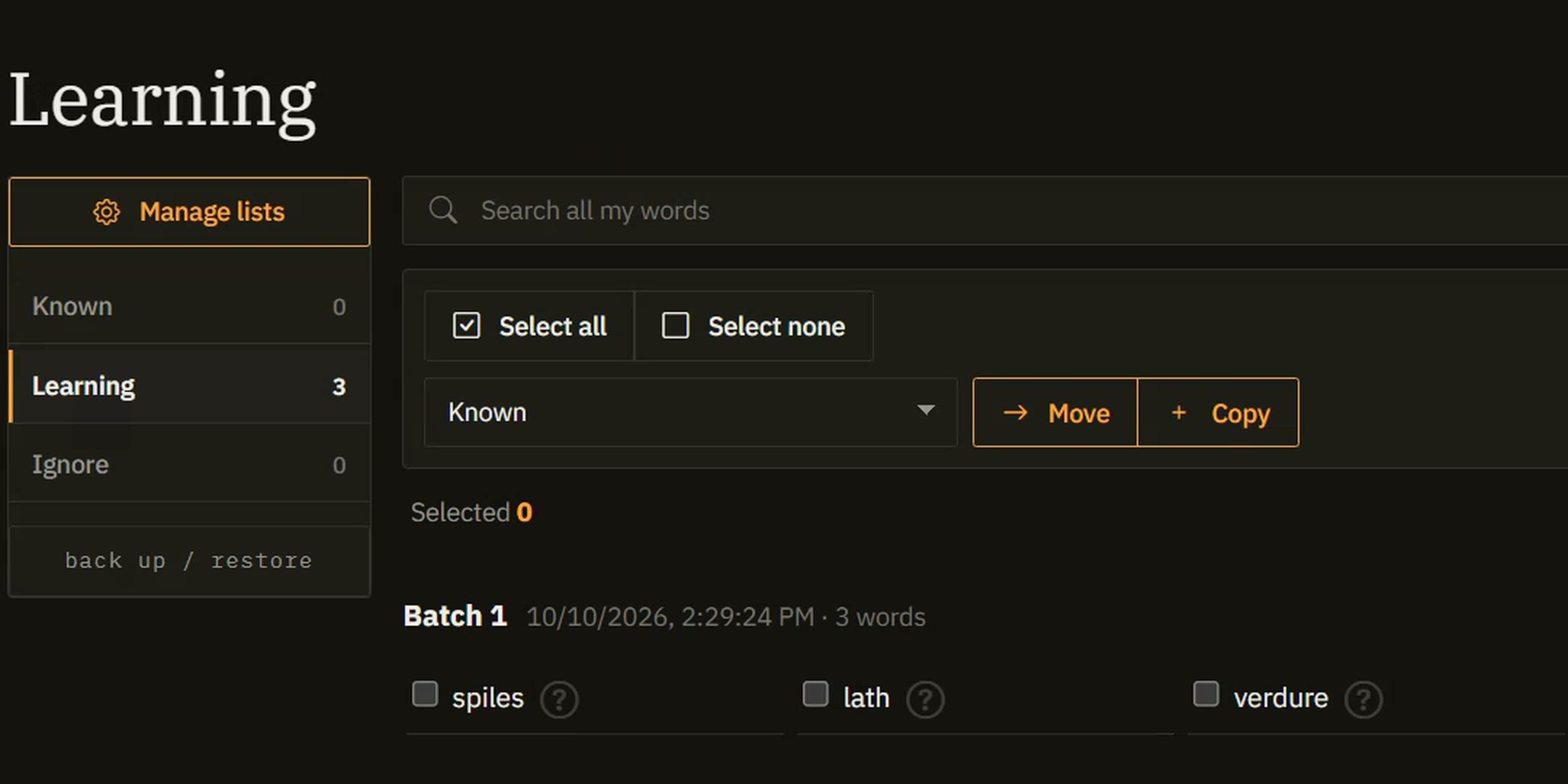
The buttons work like switches. Changed your mind? Open the word again: pressing the lit button takes it back out. You can also move words around in My Words.
4
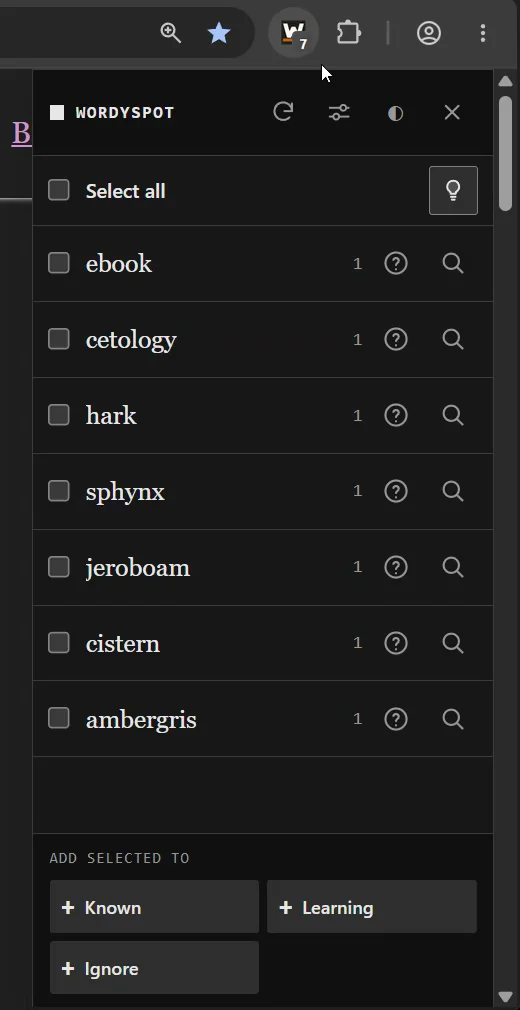
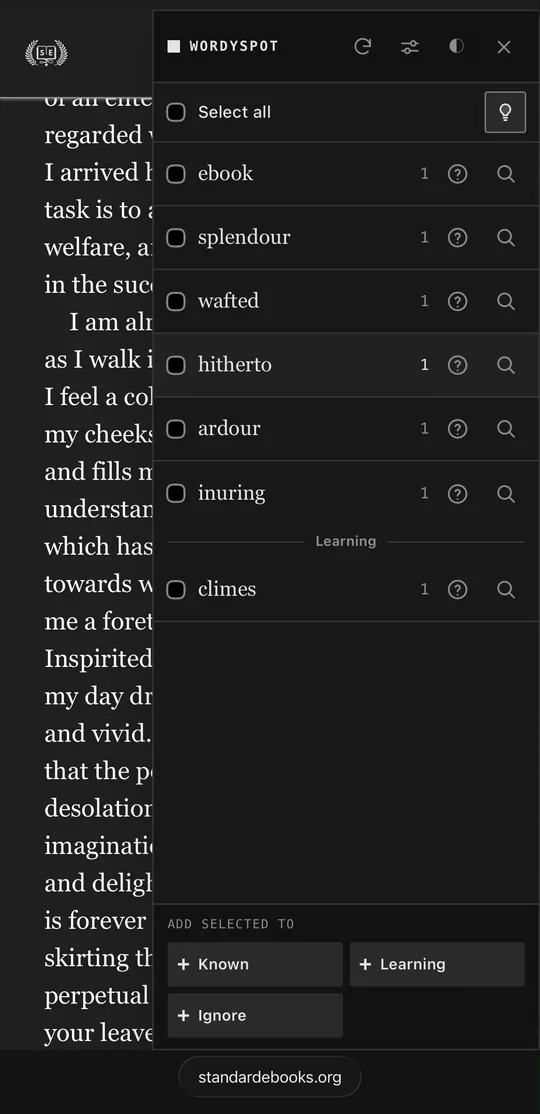
The panel: every new word on the page
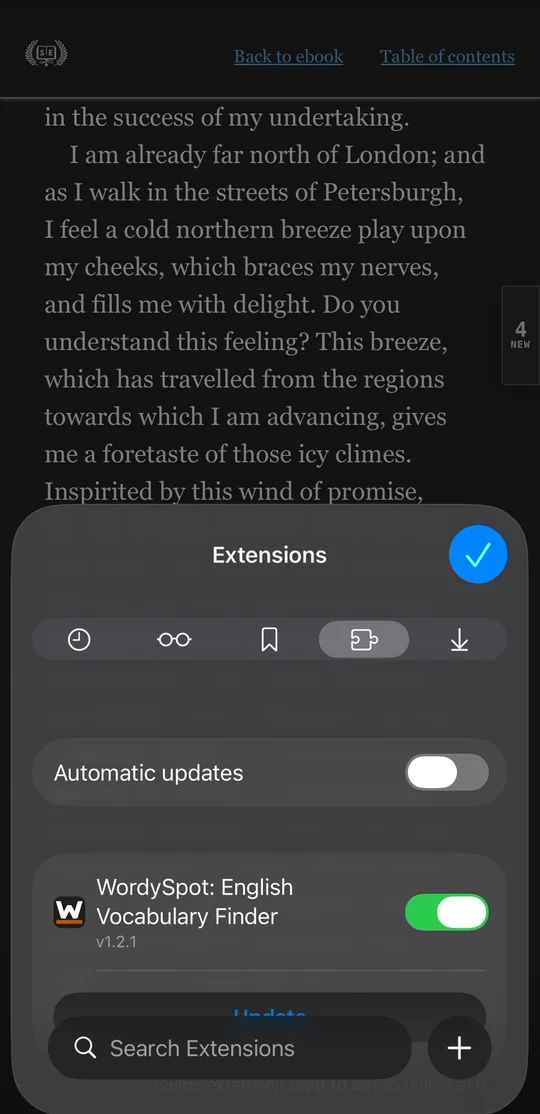
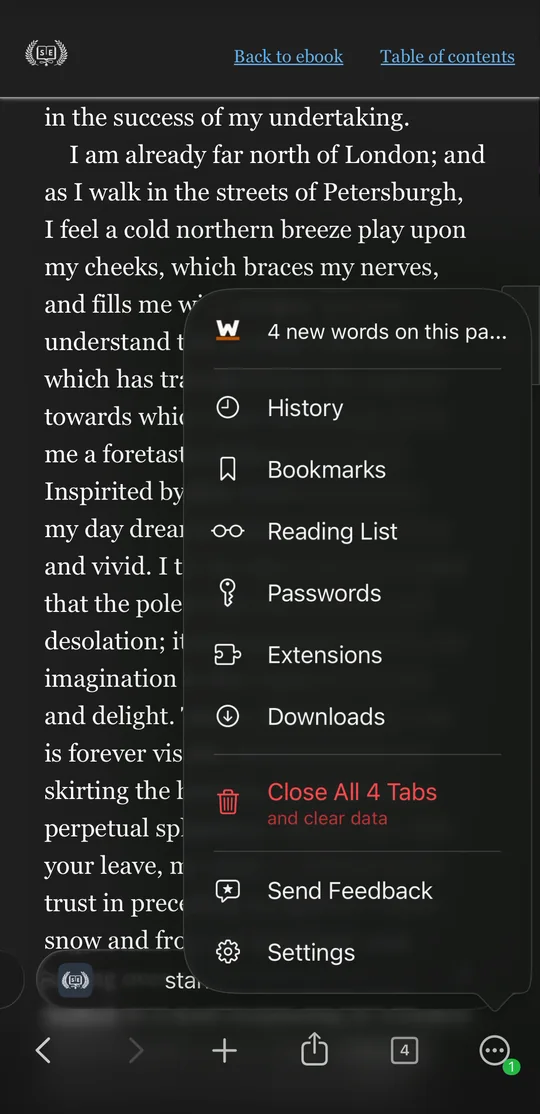
On a computer, click the WordySpot button in your browser’s toolbar, or press Alt+Shift+W (Option on a Mac). On a phone, tap the small tab at the edge of the page; Orion also lists WordySpot in its menu, with the page’s count.
- Each new word, with how many times the page uses it.
- Tick words, or Select all, then add them to Known, Learning or Ignore at once. Marking a page’s easy words as Known in one go is the quickest way to teach WordySpot what you know.
- ? shows a word’s definition; the magnifier finds it on the page.
- The light bulb at the top turns the underlines off on this page, and back on.
5
My Words
Every word you sort is kept on wordyspot.com in My Words: Known, Learning, Ignore and any lists you make. Open a word there to read its card again or hear it.
Connect WordySpot in another browser, or on your phone, and the same words come with it.
6
Settings
Open them with the sliders button at the top of the panel, or on the extension page here on wordyspot.com.
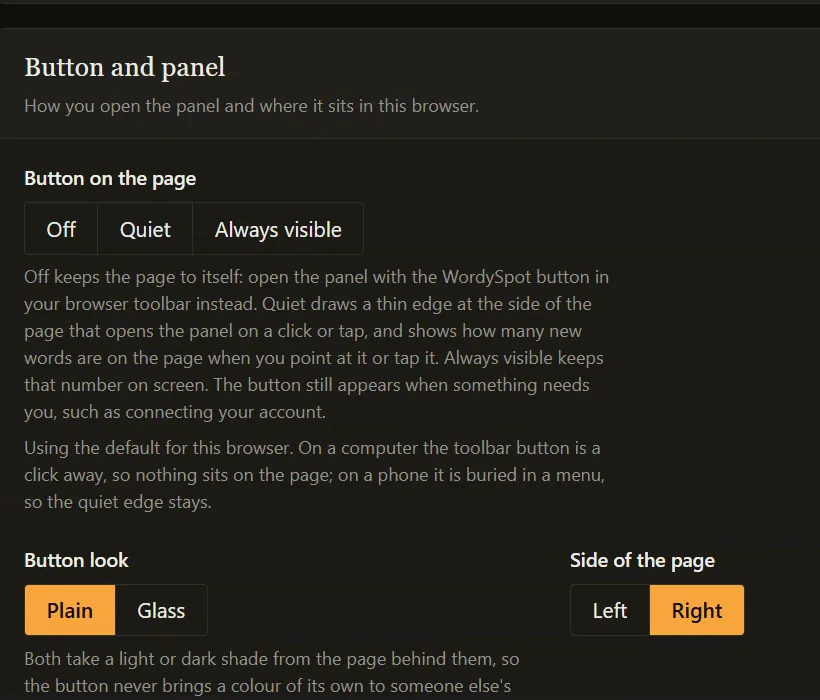
- Button on the page: Off leaves the page alone, and the panel opens from the toolbar. Quiet draws a thin edge that shows the count when you point at it. Always visible keeps the count on screen. Computers start with Off, phones with Quiet.
- The button’s look, which side of the page it sits on, how far down, and whether it hides while you scroll.
- Where WordySpot runs: websites it should stay off, or the only ones it should run on.
7
Turning it off
- On one page
- The light bulb at the top of the panel hides the underlines until you turn them back on.
- On one website
- Add it under Where WordySpot runs in the settings, as Don’t run here.
- In private windows
- It never runs there; there is nothing to switch off.
- Everywhere
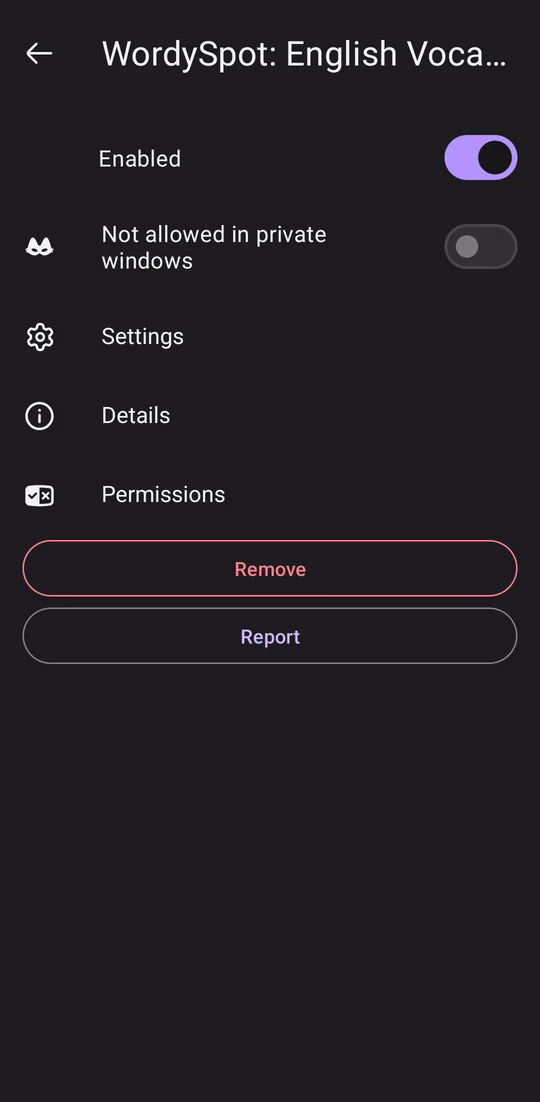
- Use your browser’s switch for the extension: chrome://extensions in Chrome, about:addons in Firefox. On a phone, see the pictures. Switching it back on picks up where you left off.