Browsers that can run WordySpot
Add WordySpot to Teak on iPhone and iPad
Teak installs WordySpot from the Chrome Web Store. Running extensions is part of Teak’s paid upgrade.
Open this page on your iPhone in Teak, or follow the steps from wordyspot.com there.
-
Step 1
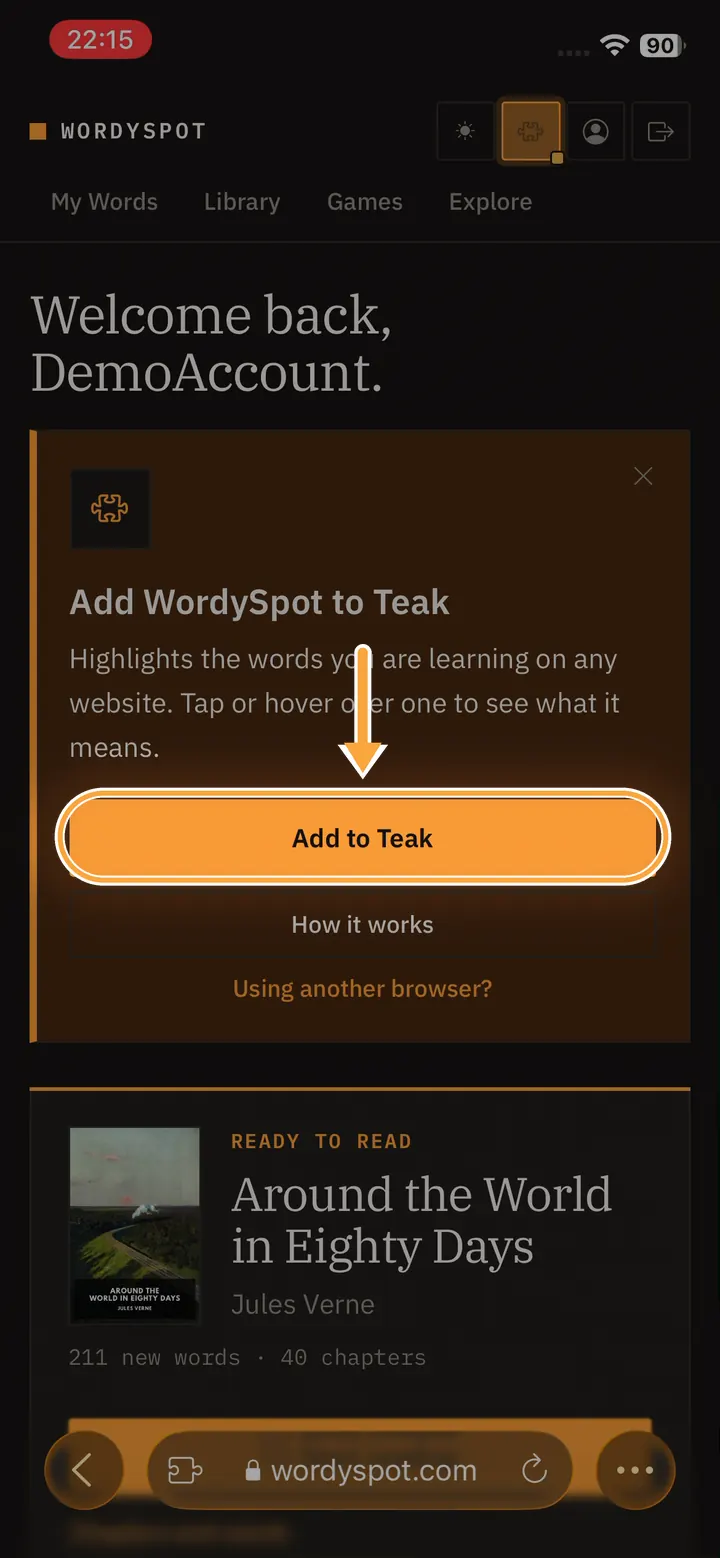
Open wordyspot.com in Teak and tap Add to Teak
Sign in to WordySpot in Teak. The home page offers the extension for this browser; tap Add to Teak.
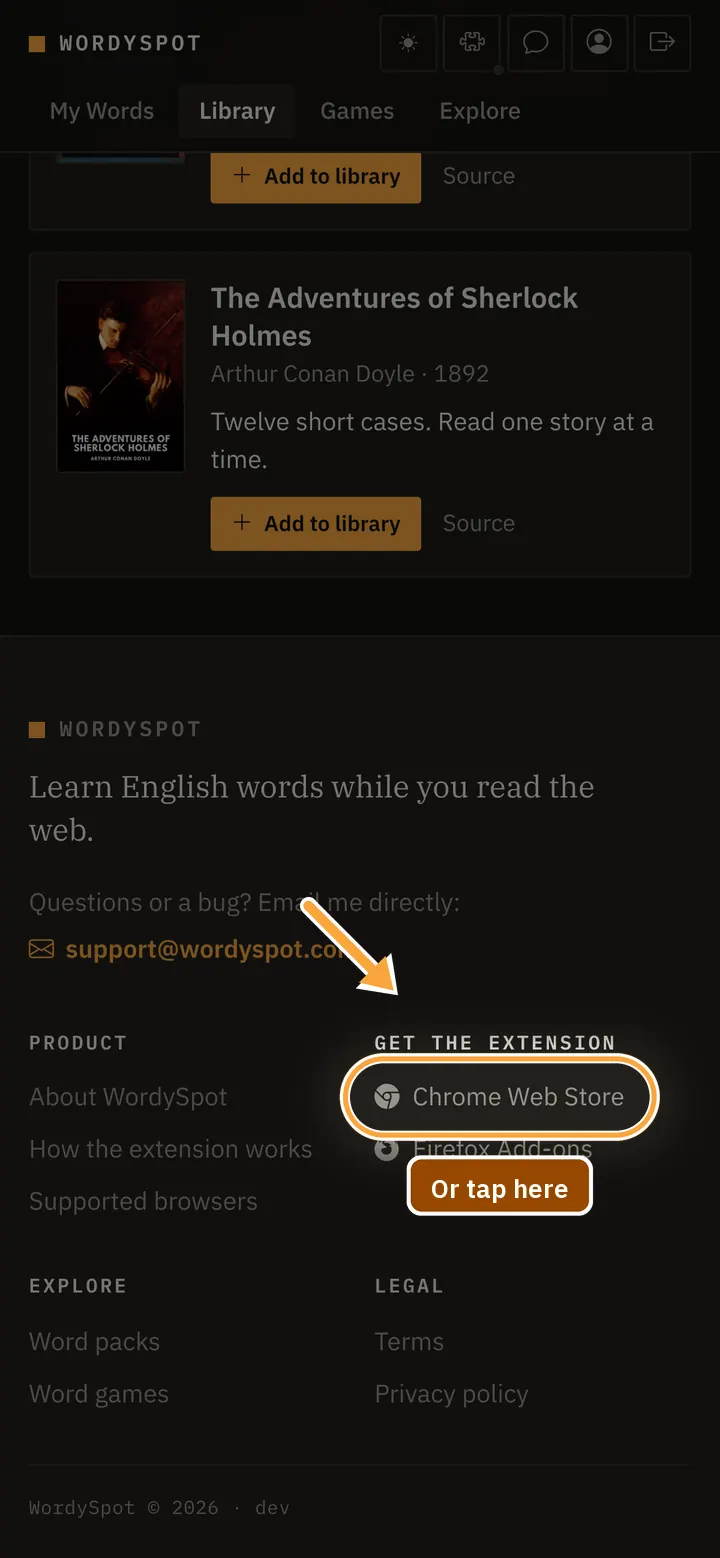
Or scroll to the bottom of any page
Every wordyspot.com page ends with the store links. Under Get the extension, tap Chrome Web Store.
-
Step 2
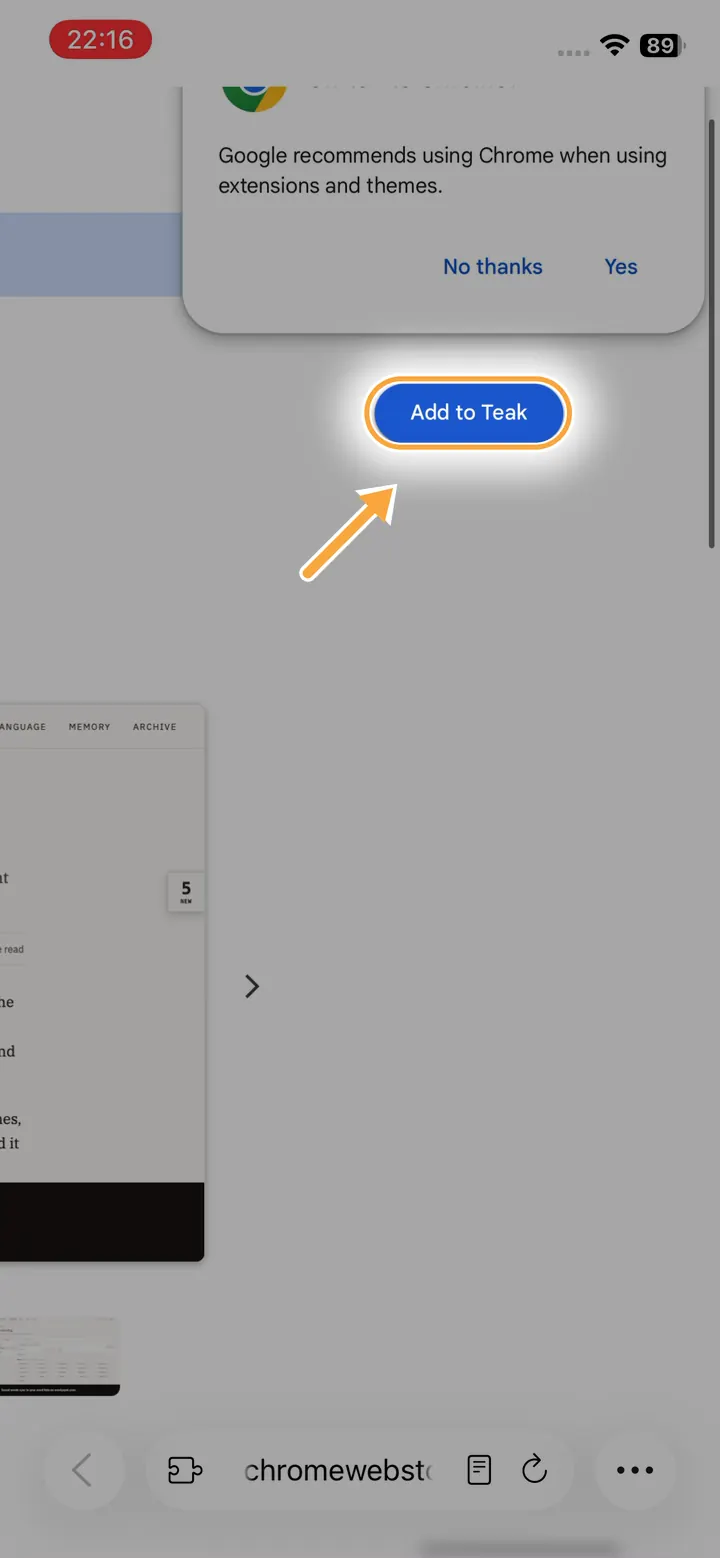
Tap Add to Teak in the Chrome Web Store
The store page is small on a phone screen; zoom in if you need to. Google may suggest switching to Chrome: ignore that and tap Add to Teak. If the button says Add to Desktop instead, pull the page down to reload it.
-
Step 3
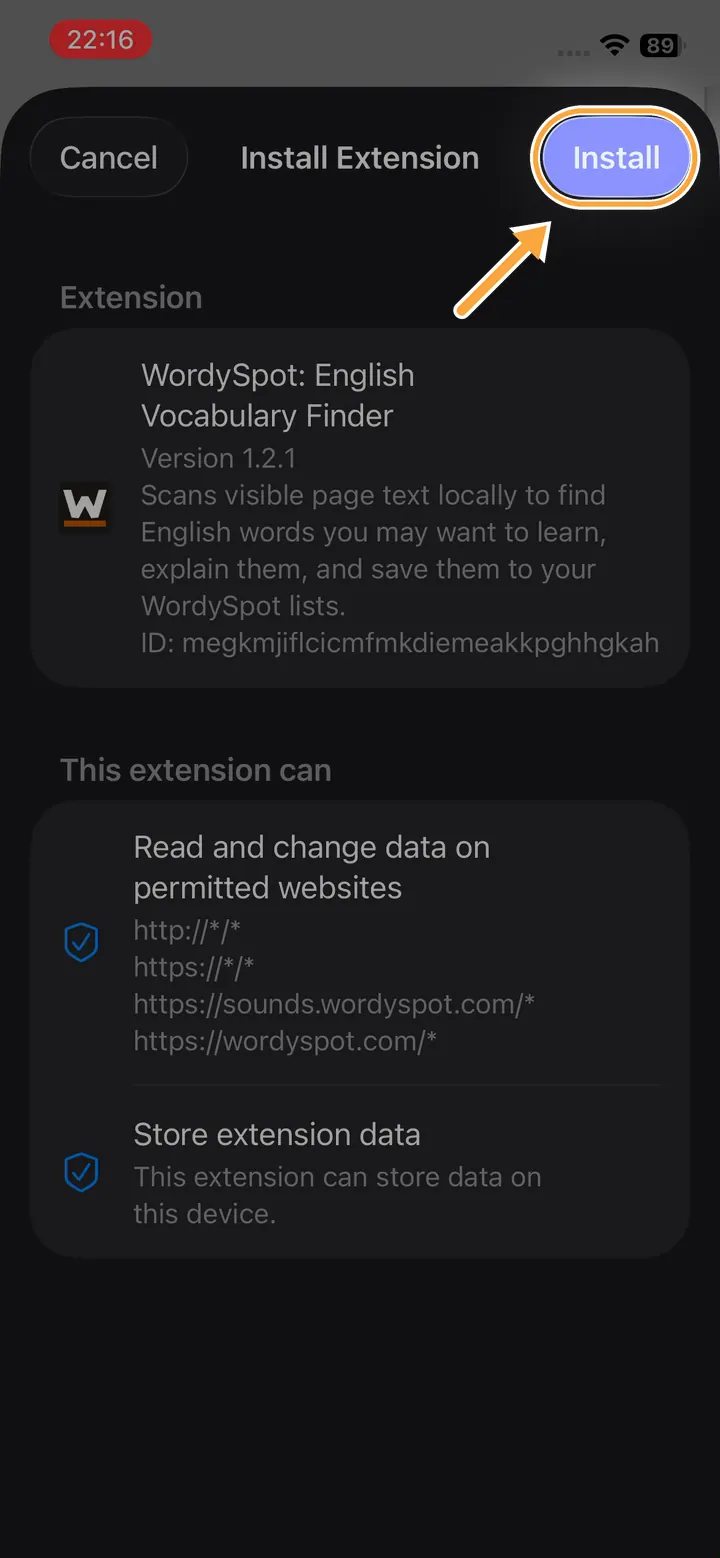
Tap Install
Teak lists what the extension can do: read the pages you open, to find the words you are learning, and store its settings. Tap Install.
-
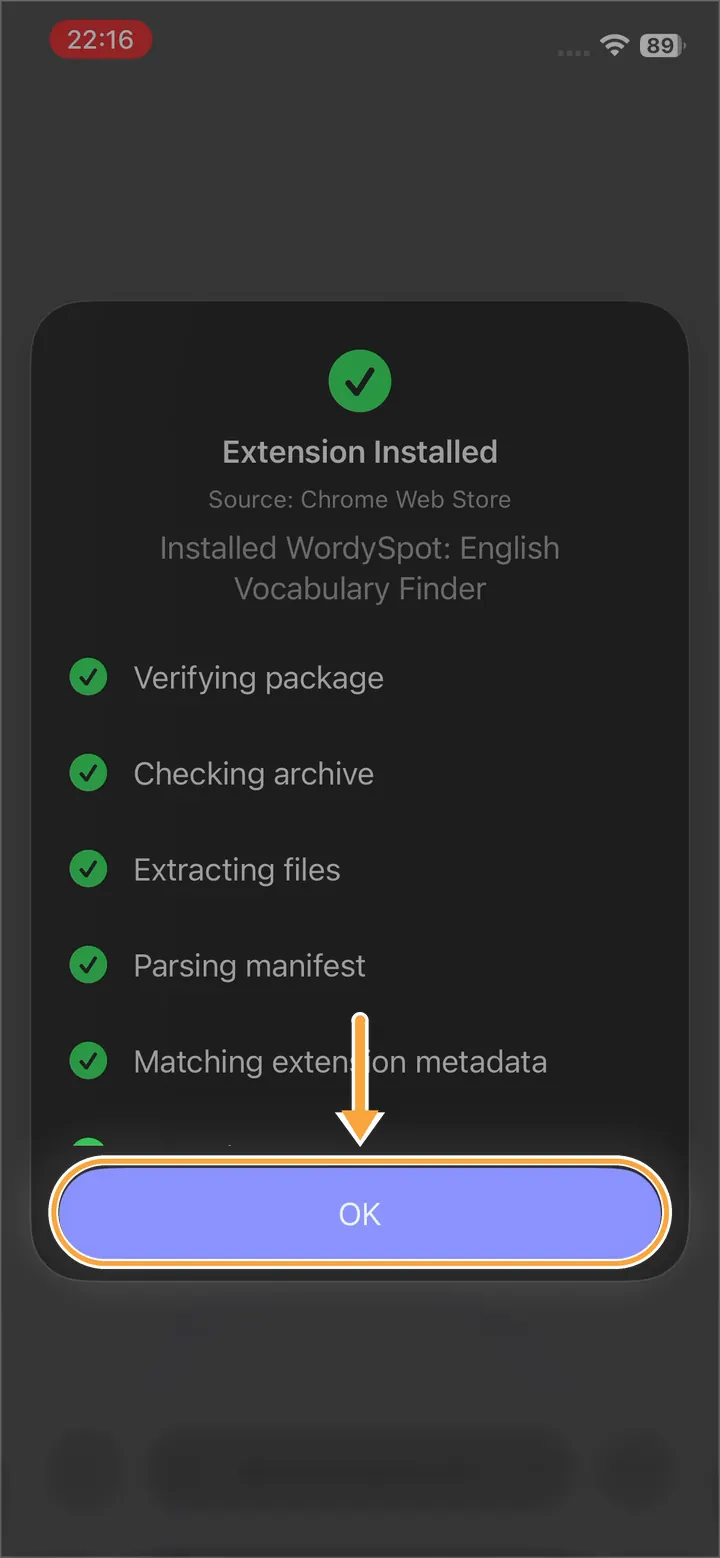
Step 4
Tap OK when Teak has installed it
Teak checks the package and installs it. Tap OK.
-
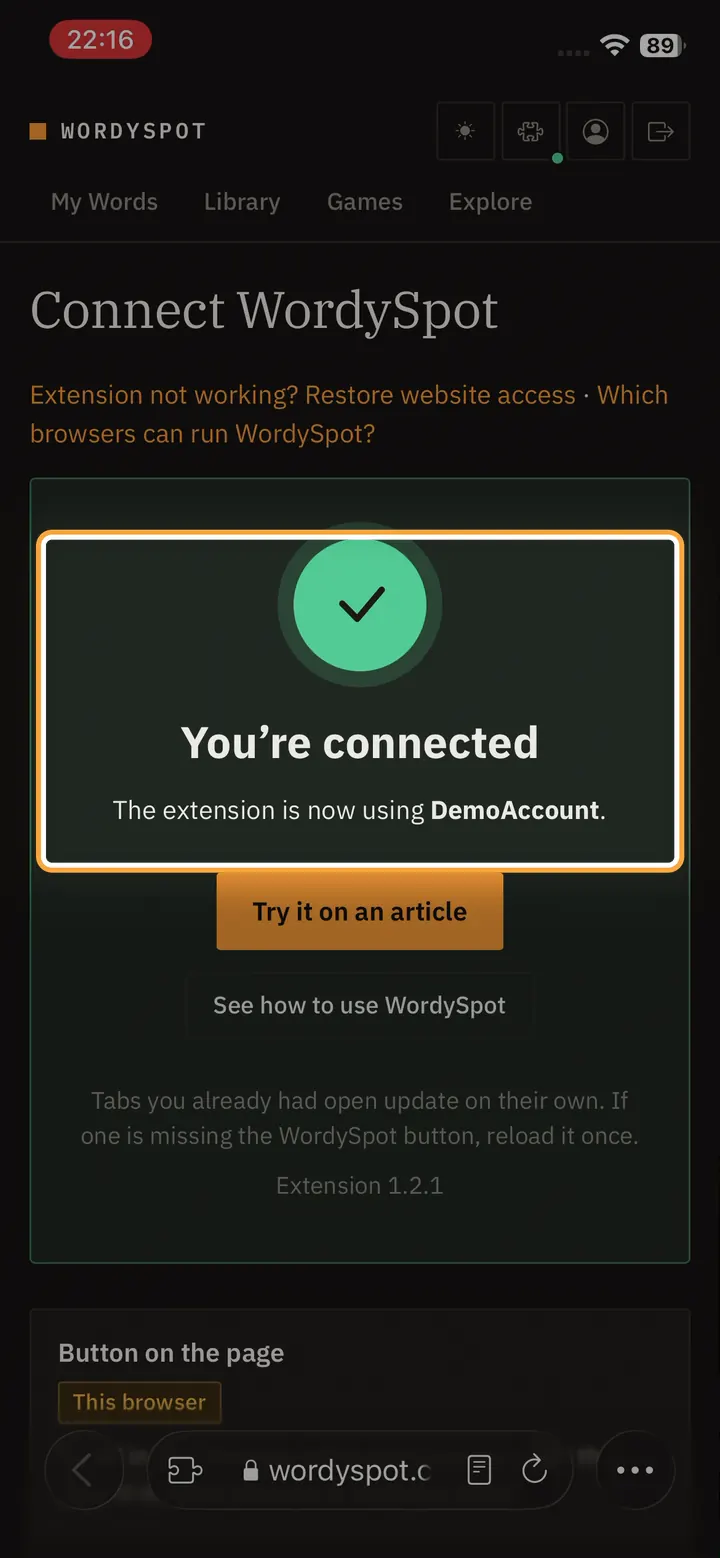
Step 5
Wait for “You’re connected”
WordySpot opens and connects to your account by itself. There is nothing to type. If it asks you to sign in, sign in with the account you use on this site.
-
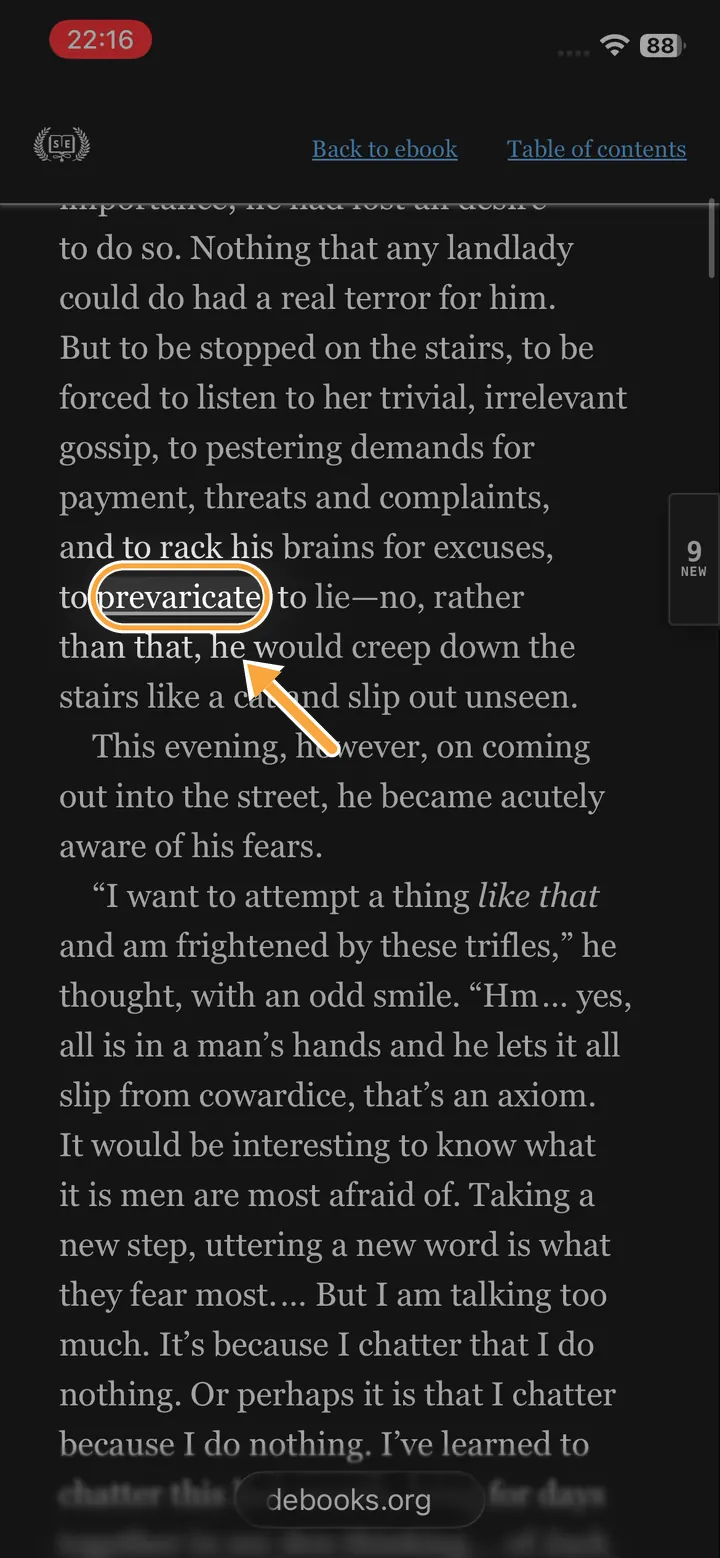
Step 6
Open a page and tap an underlined word
Open any page in English. Words you have not learned yet are underlined; tap one to see what it means and save it to a list.
-
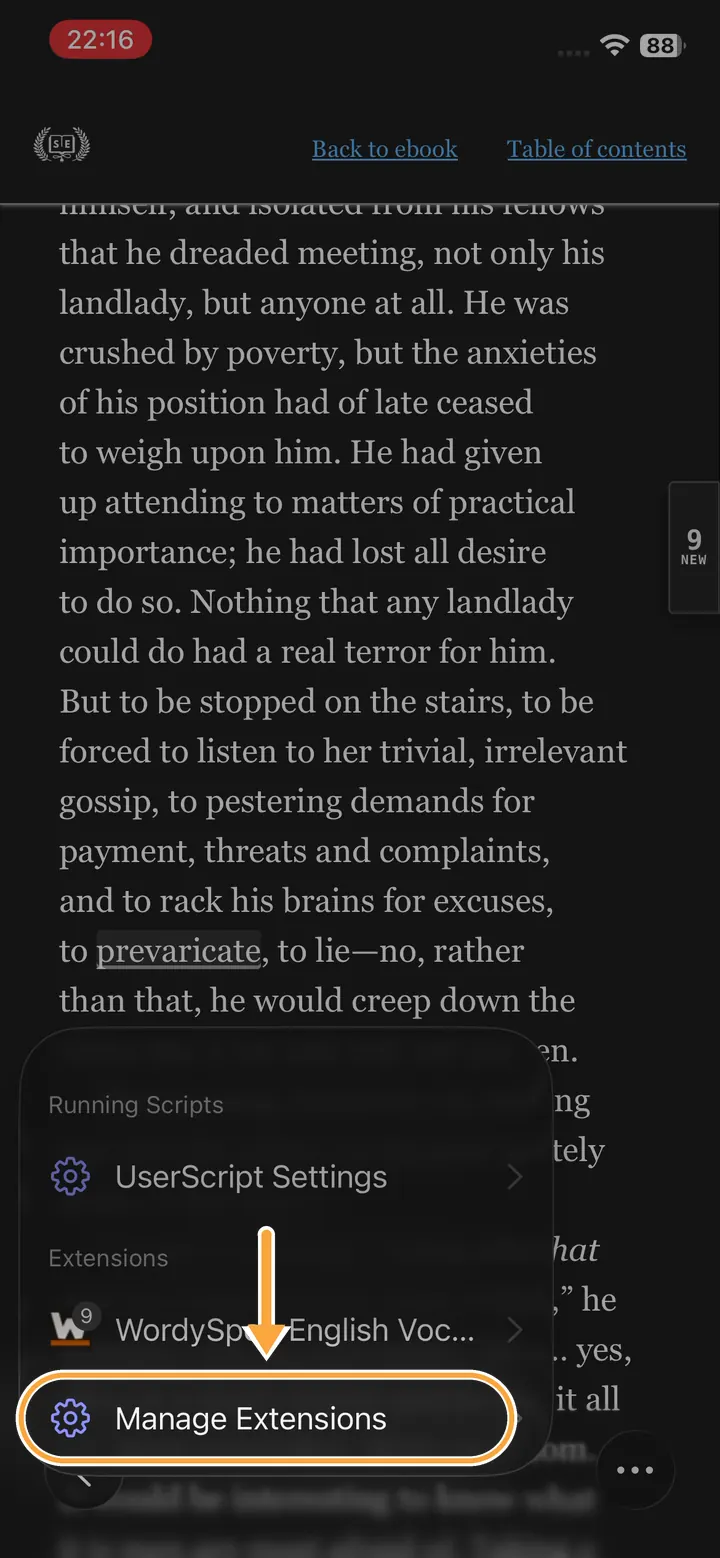
Step 7
Later: manage it from the extensions button
Tap the extensions button in the toolbar, then Manage Extensions. The switch next to WordySpot turns it off; Remove deletes it.
Still stuck?
Phones and browsers update often, so a screen may look a little different from the one here. Write to support@wordyspot.com with your browser and the step that went wrong, and I will look.