Browsers that can run WordySpot
Add WordySpot to Firefox on Android
Firefox for Android installs WordySpot from the same Firefox Add-ons listing the desktop browser uses. It takes about a minute.
Open this page on your Android in Firefox, or follow the steps from wordyspot.com there.
-
Step 1
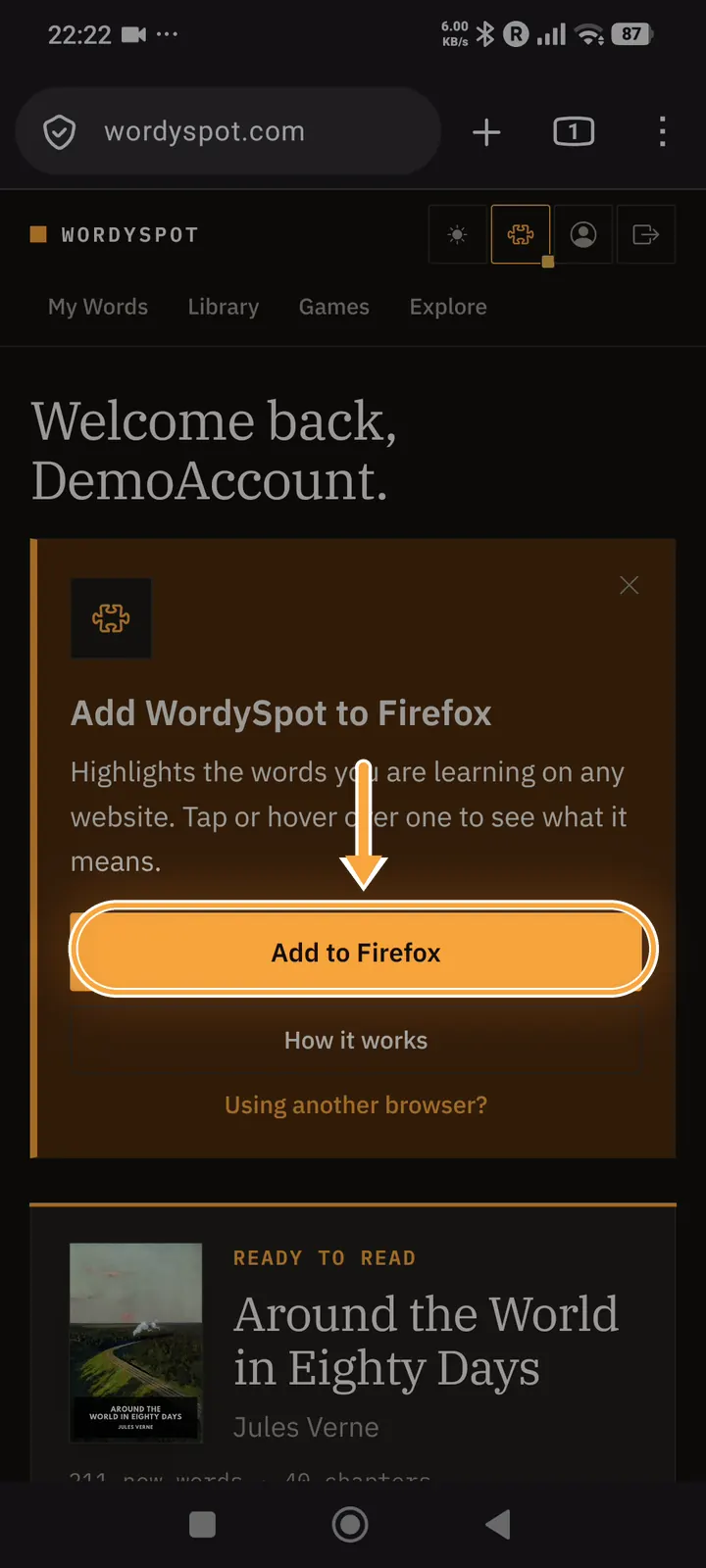
Open wordyspot.com in Firefox and tap Add to Firefox
Sign in to WordySpot in Firefox. The home page offers the extension for this browser; tap Add to Firefox.
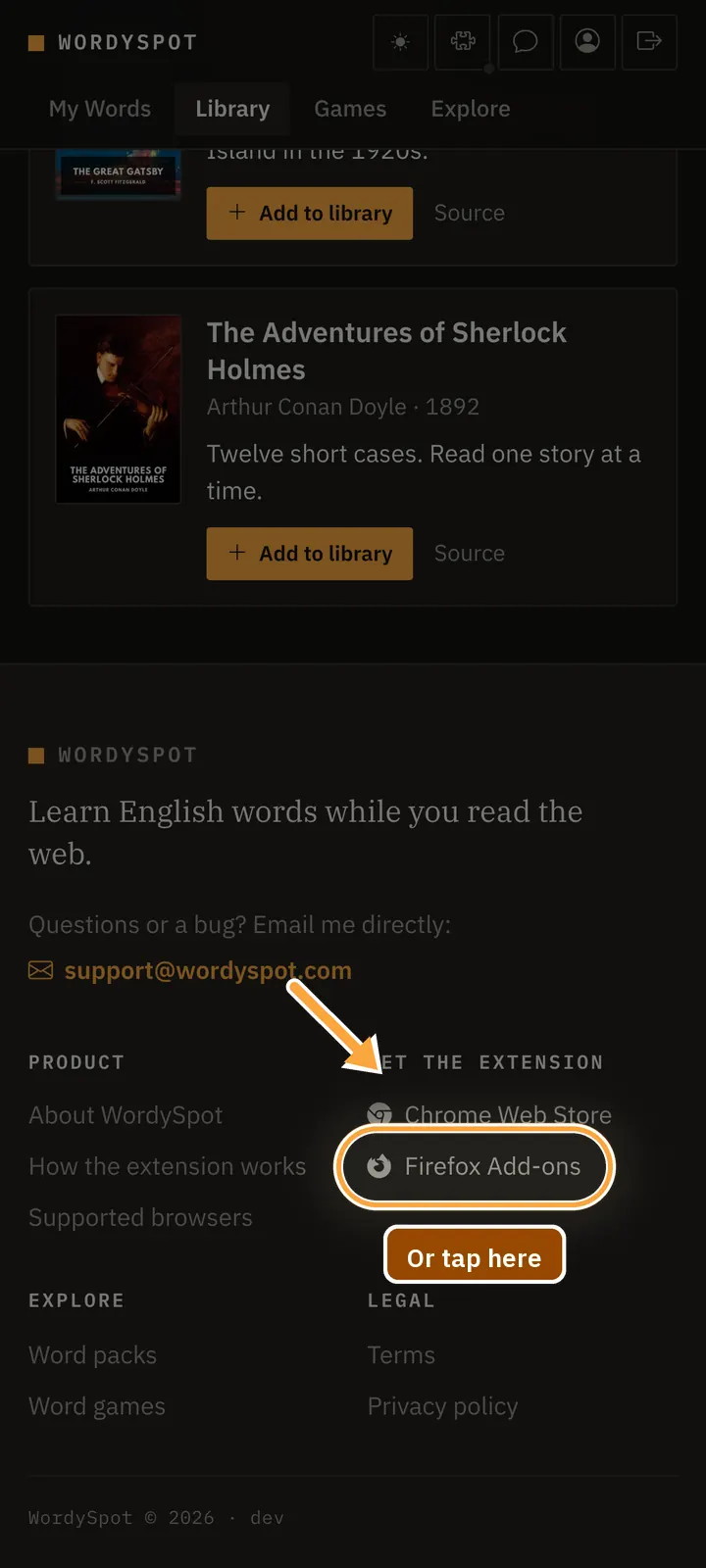
Or scroll to the bottom of any page
Every wordyspot.com page ends with the store links. Under Get the extension, tap Firefox Add-ons.
-
Step 2
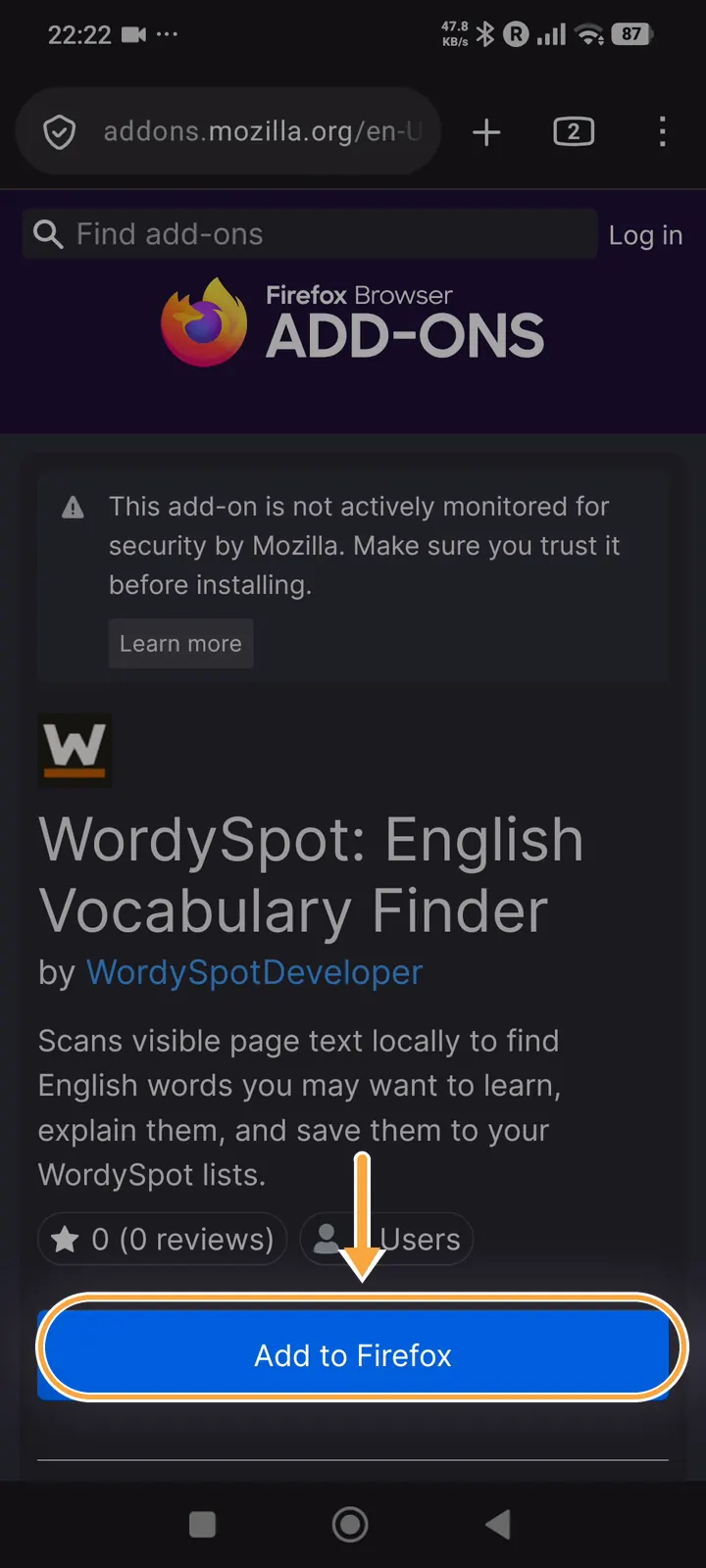
Tap Add to Firefox on the add-on page
Firefox Add-ons opens the WordySpot listing. Its note that Mozilla does not monitor the add-on is shown for most add-ons; tap Add to Firefox.
-
Step 3
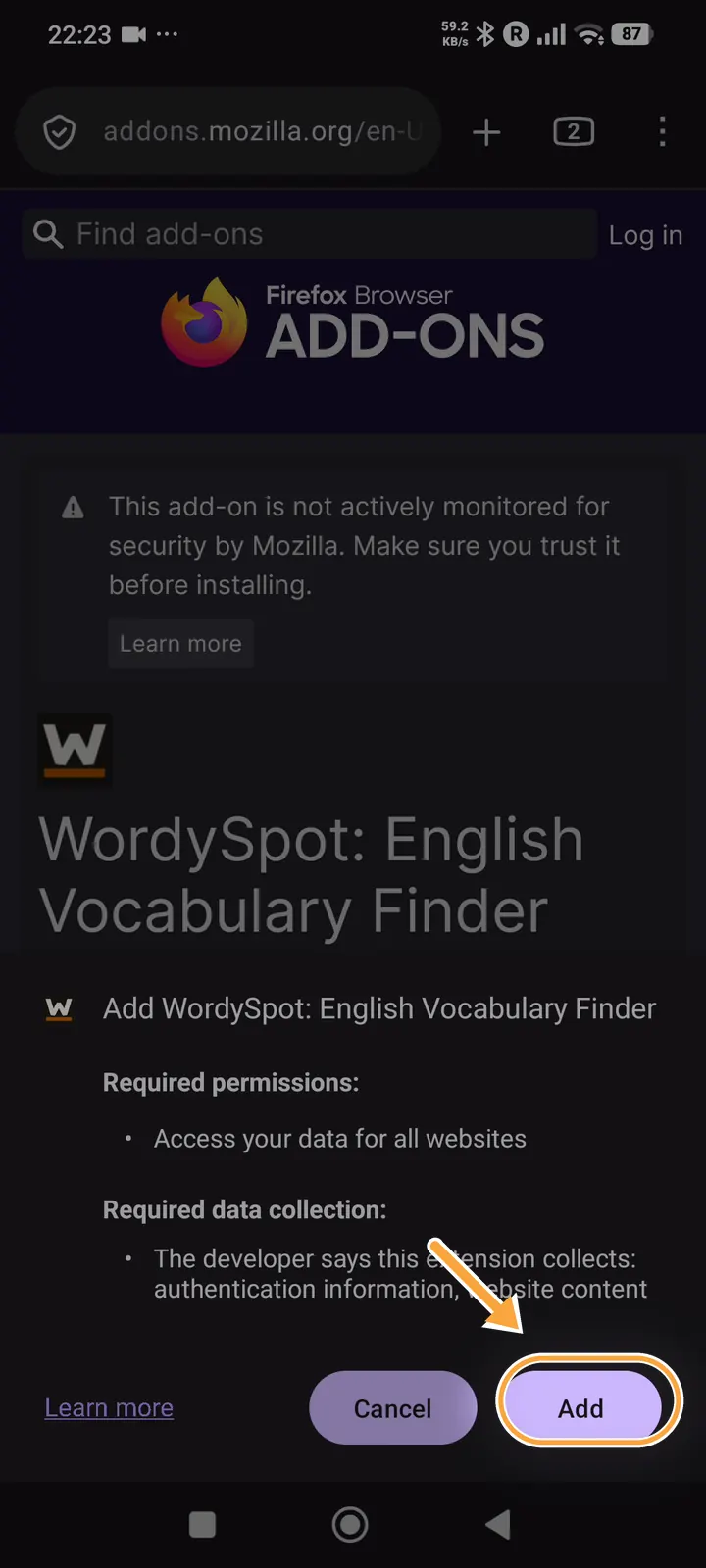
Tap Add to let it read pages
Firefox asks before an add-on can read the pages you open. WordySpot needs that to find the words you are learning. Tap Add.
-
Step 4
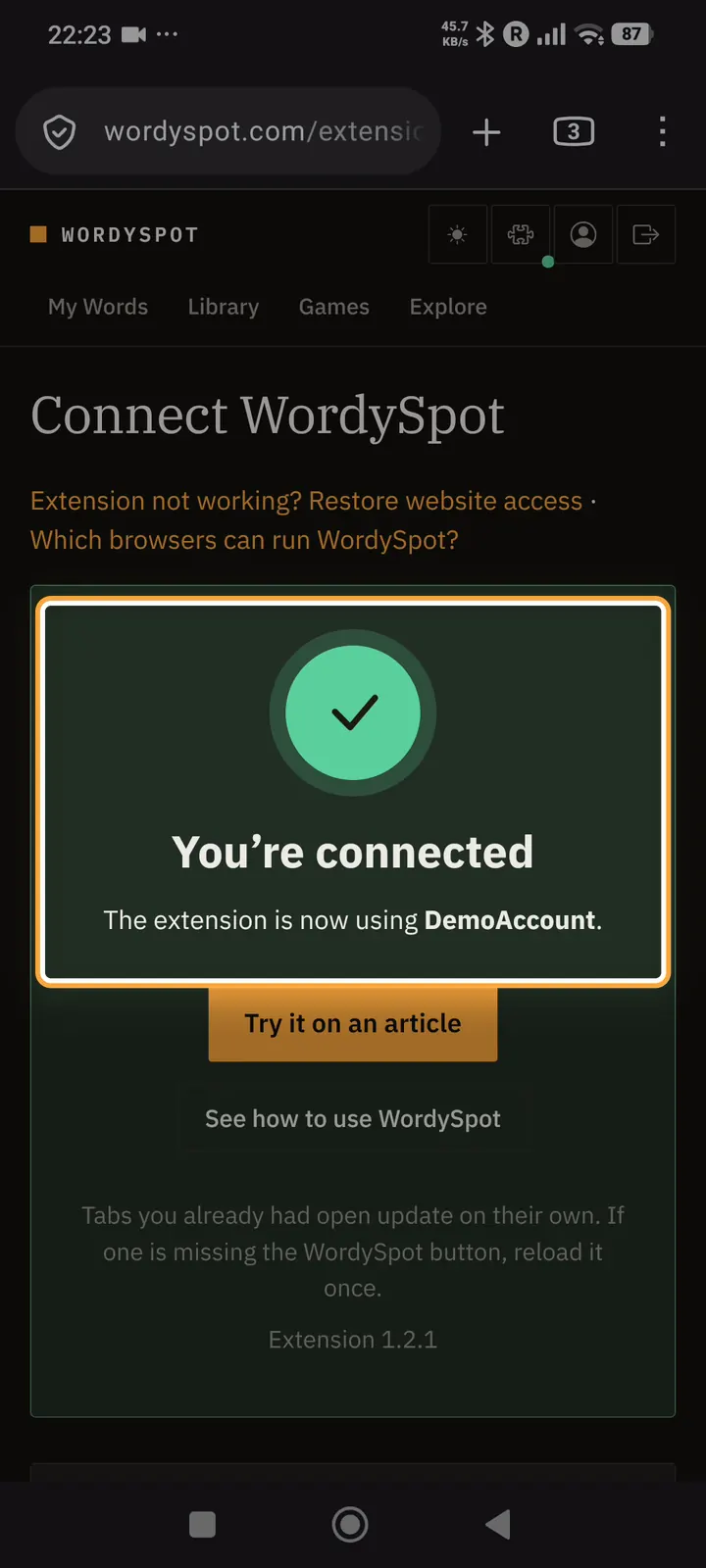
Wait for “You’re connected”
WordySpot opens a new tab and connects to your account by itself. There is nothing to type. If it asks you to sign in, sign in with the account you use on this site.
-
Step 5
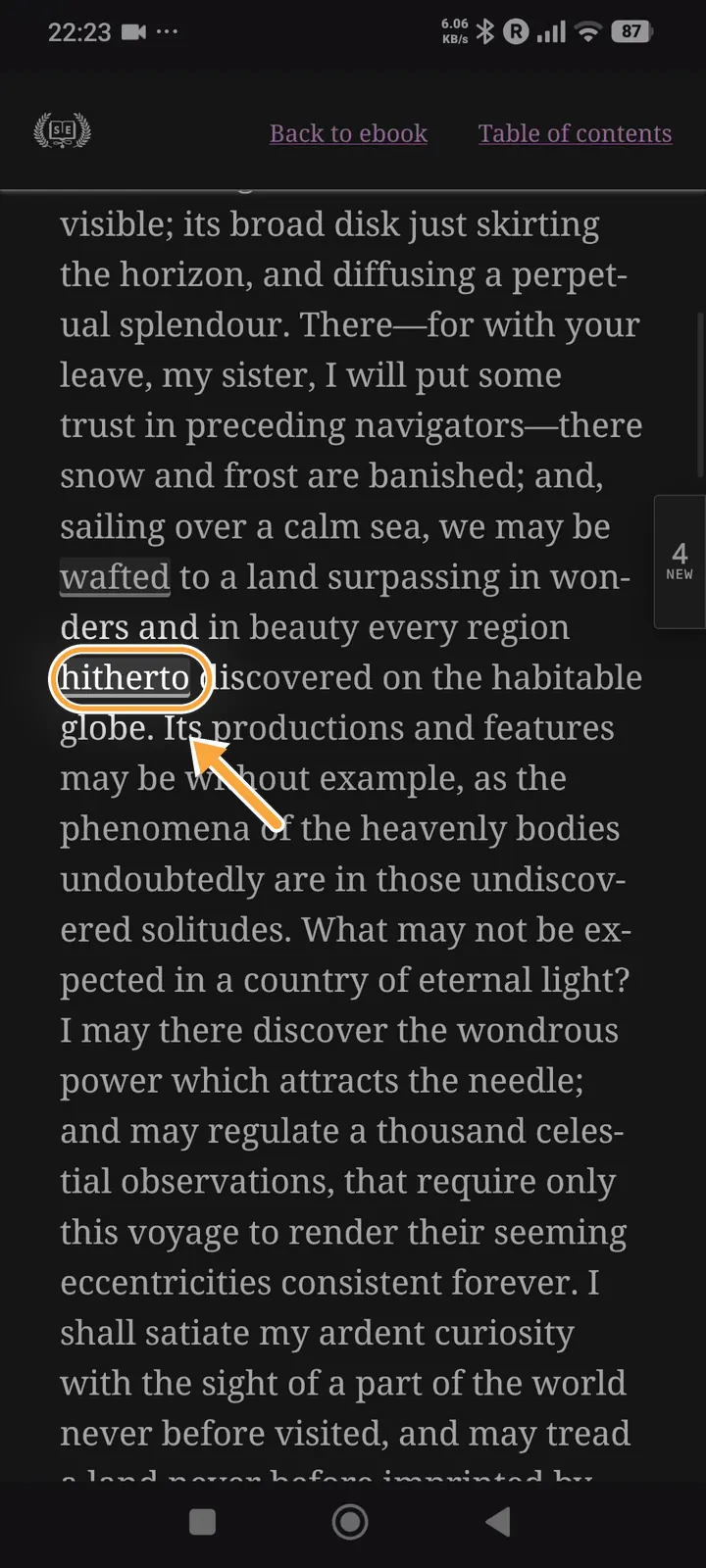
Open a page and tap an underlined word
Open any page in English. Words you have not learned yet are underlined; tap one to see what it means and save it to a list.
-
Step 6
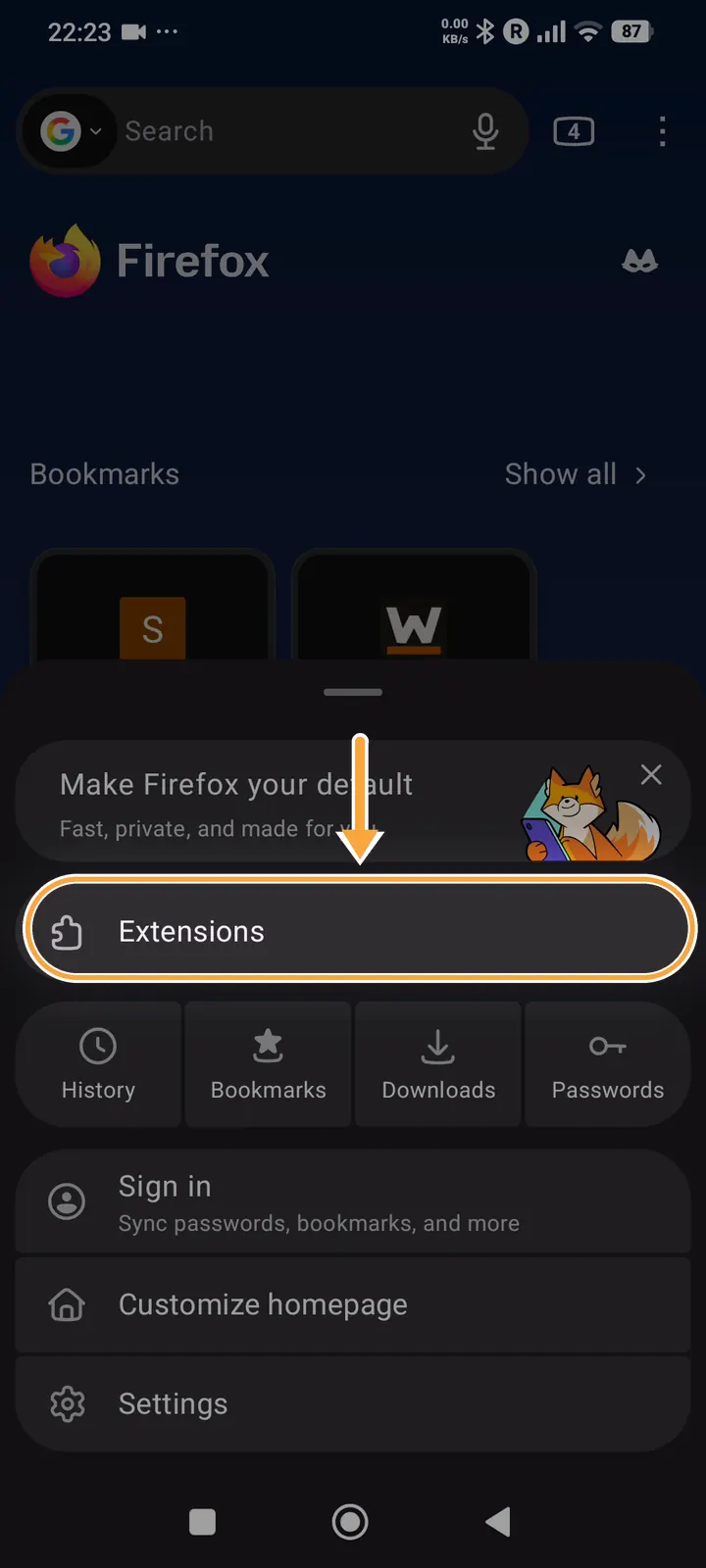
Later: pause or remove it under Extensions
Open the Firefox menu (the three dots), tap Extensions, then WordySpot. You can turn it off there or remove it.
Still stuck?
Phones and browsers update often, so a screen may look a little different from the one here. Write to support@wordyspot.com with your browser and the step that went wrong, and I will look.