Browsers that can run WordySpot
Add WordySpot to Mises Browser on Android
Mises installs WordySpot from the Chrome Web Store, like a desktop Chrome does, and asks once before it adds it.
Open this page on your Android in Mises Browser, or follow the steps from wordyspot.com there.
-
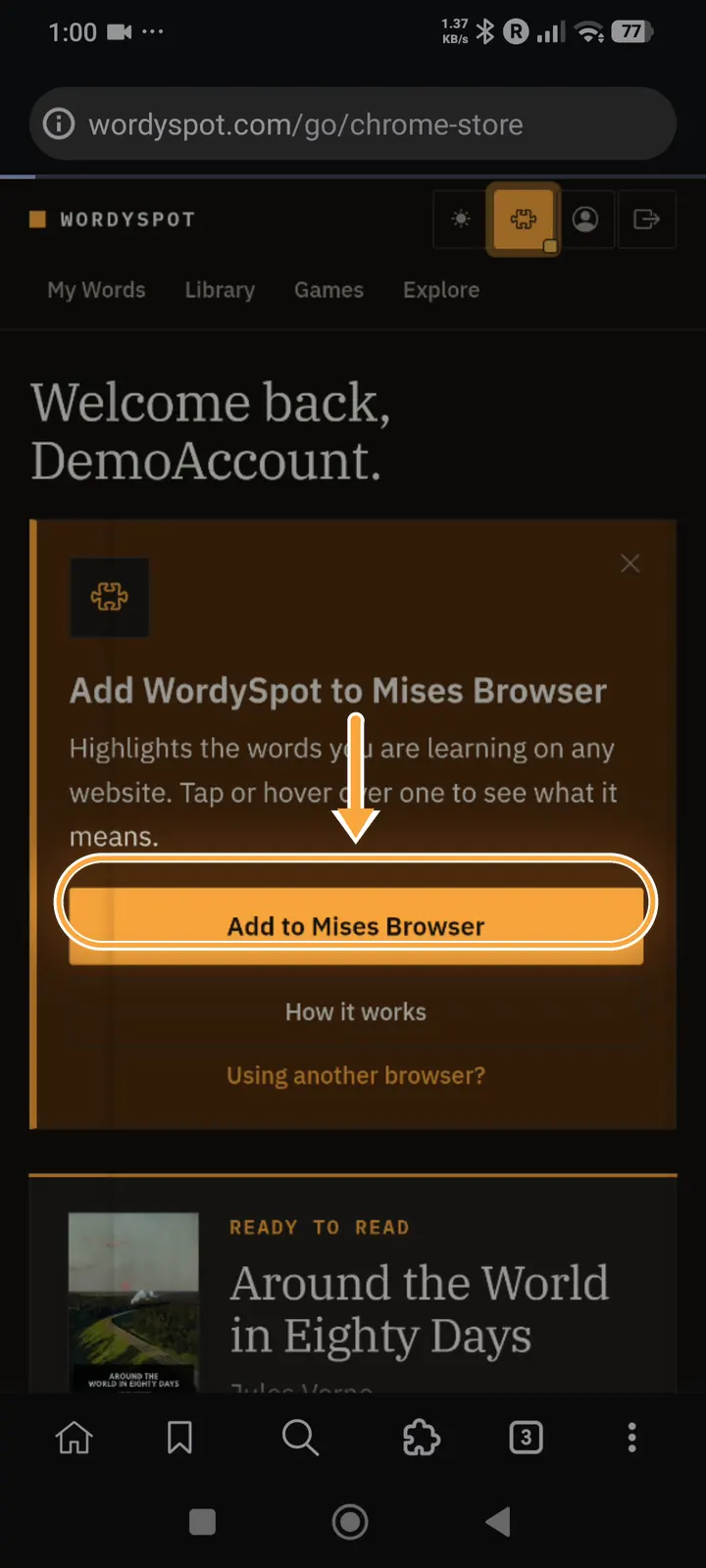
Step 1
Open wordyspot.com in Mises and tap Add to Mises Browser
Sign in to WordySpot in Mises. The home page offers the extension for this browser; tap Add to Mises Browser.
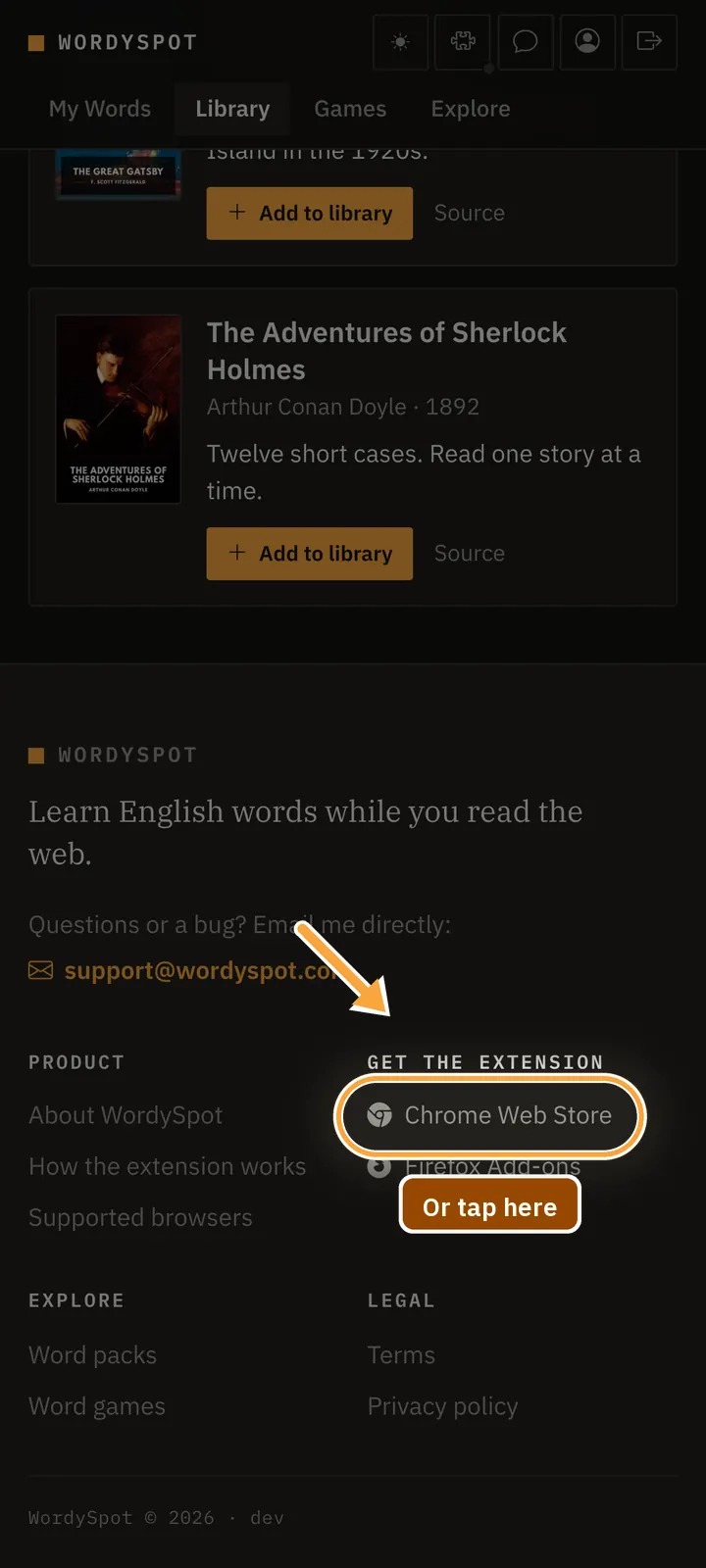
Or scroll to the bottom of any page
Every wordyspot.com page ends with the store links. Under Get the extension, tap Chrome Web Store.
-
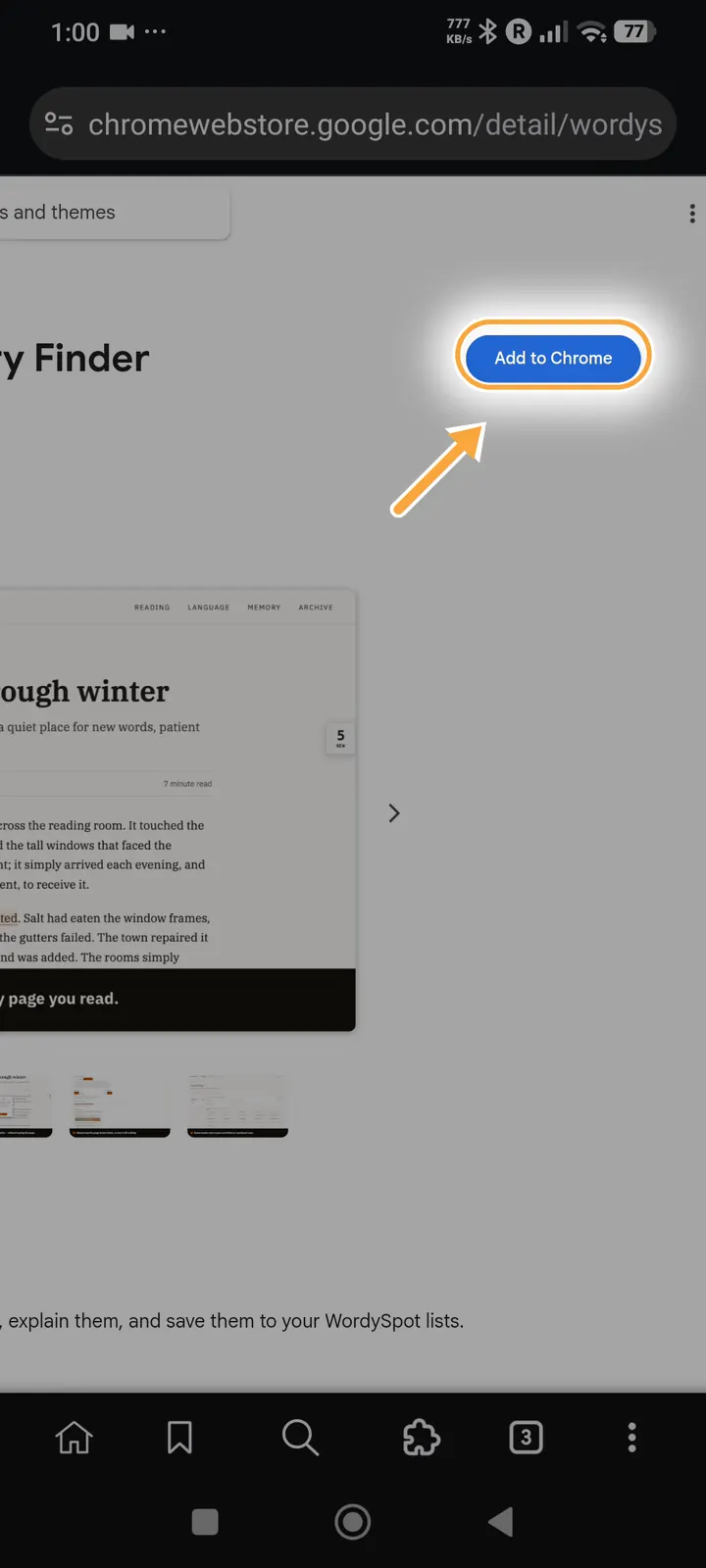
Step 2
Tap Add to Chrome when the full store page loads
The Chrome Web Store opens. Give it a moment to switch to its full listing; Mises runs Chrome extensions, so Add to Chrome is the right button. If the store shows Add to Desktop instead, that button installs nothing: pull the page down to reload it.
-
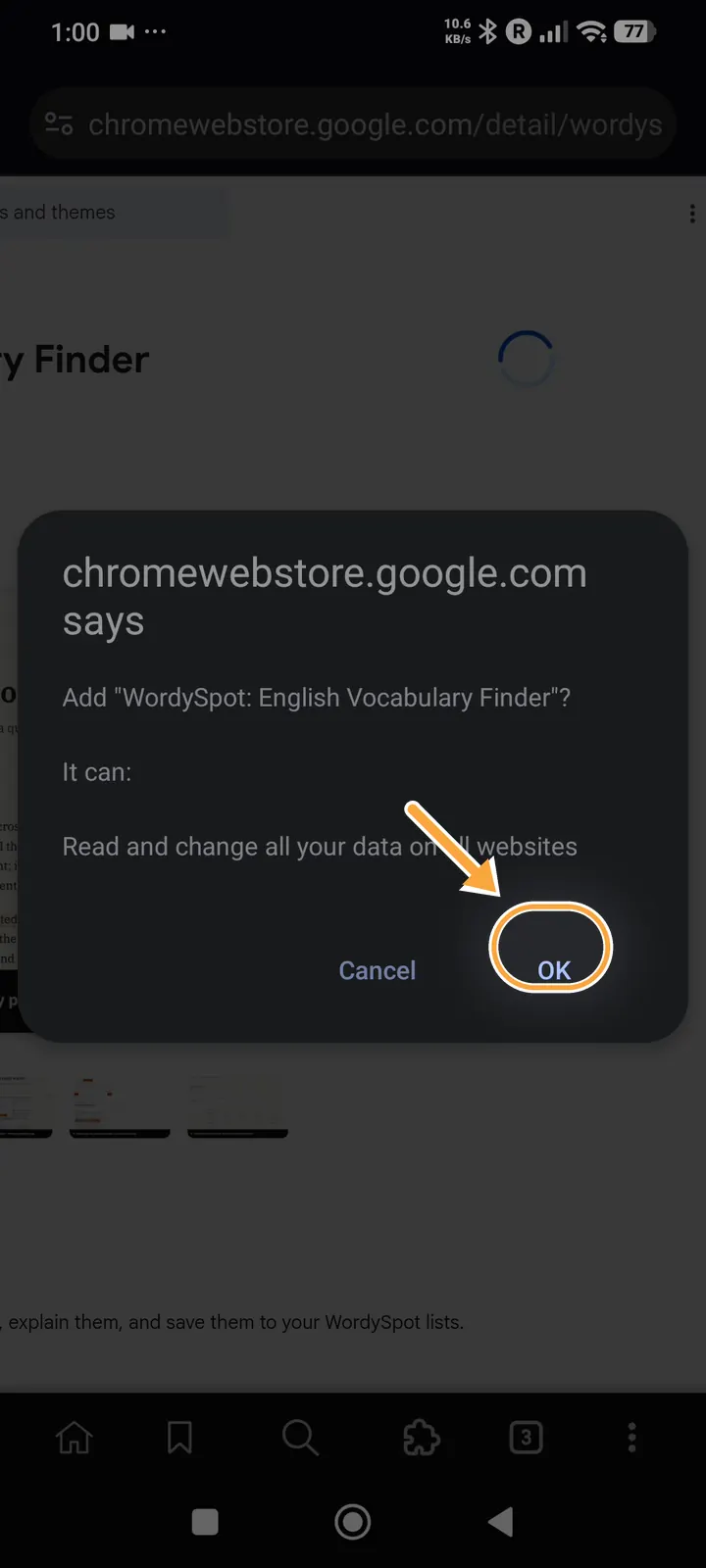
Step 3
Tap OK
Mises asks before an extension can read the pages you open. WordySpot needs that to find the words you are learning. Tap OK.
-
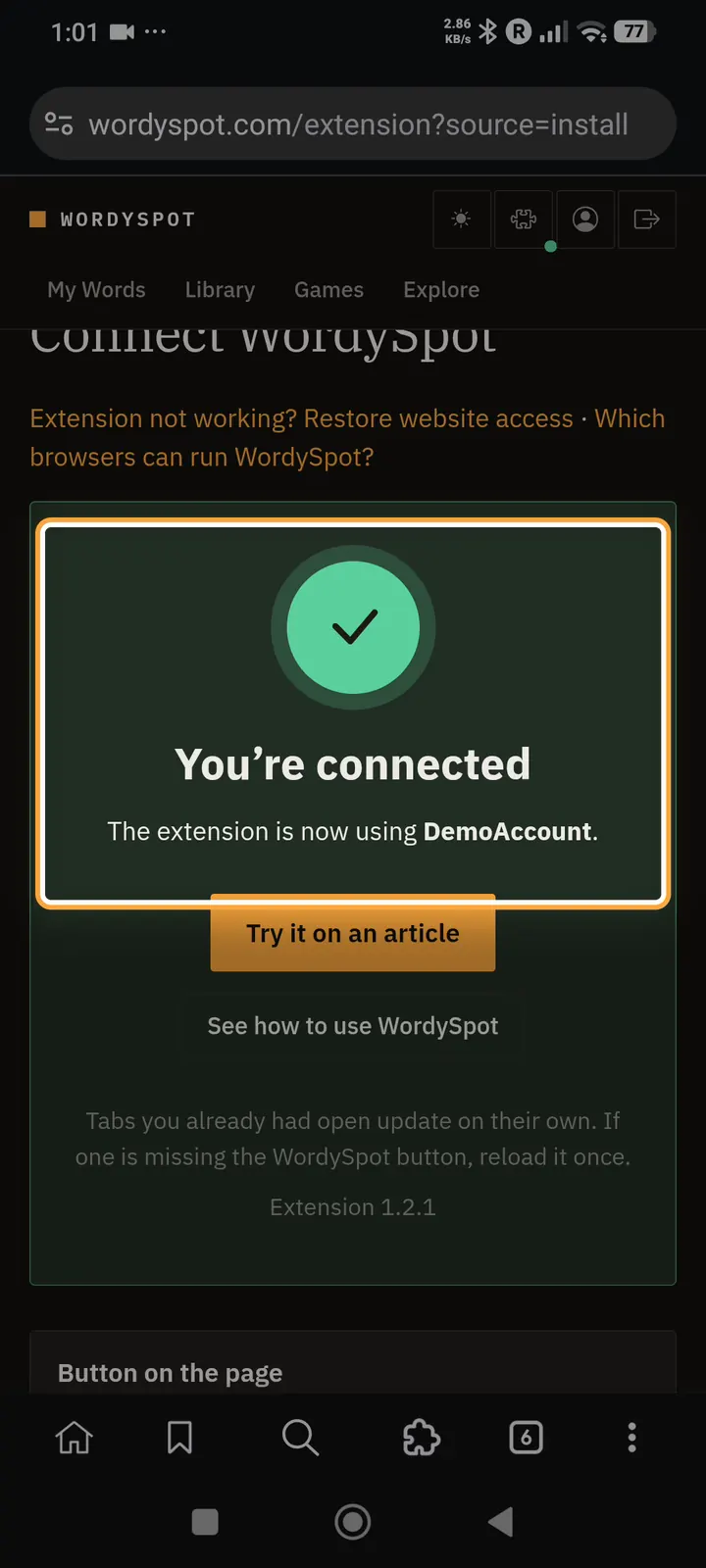
Step 4
Wait for “You’re connected”
WordySpot opens a new tab and connects to your account by itself. There is nothing to type. If it shows Something went wrong, tap Try again.
-
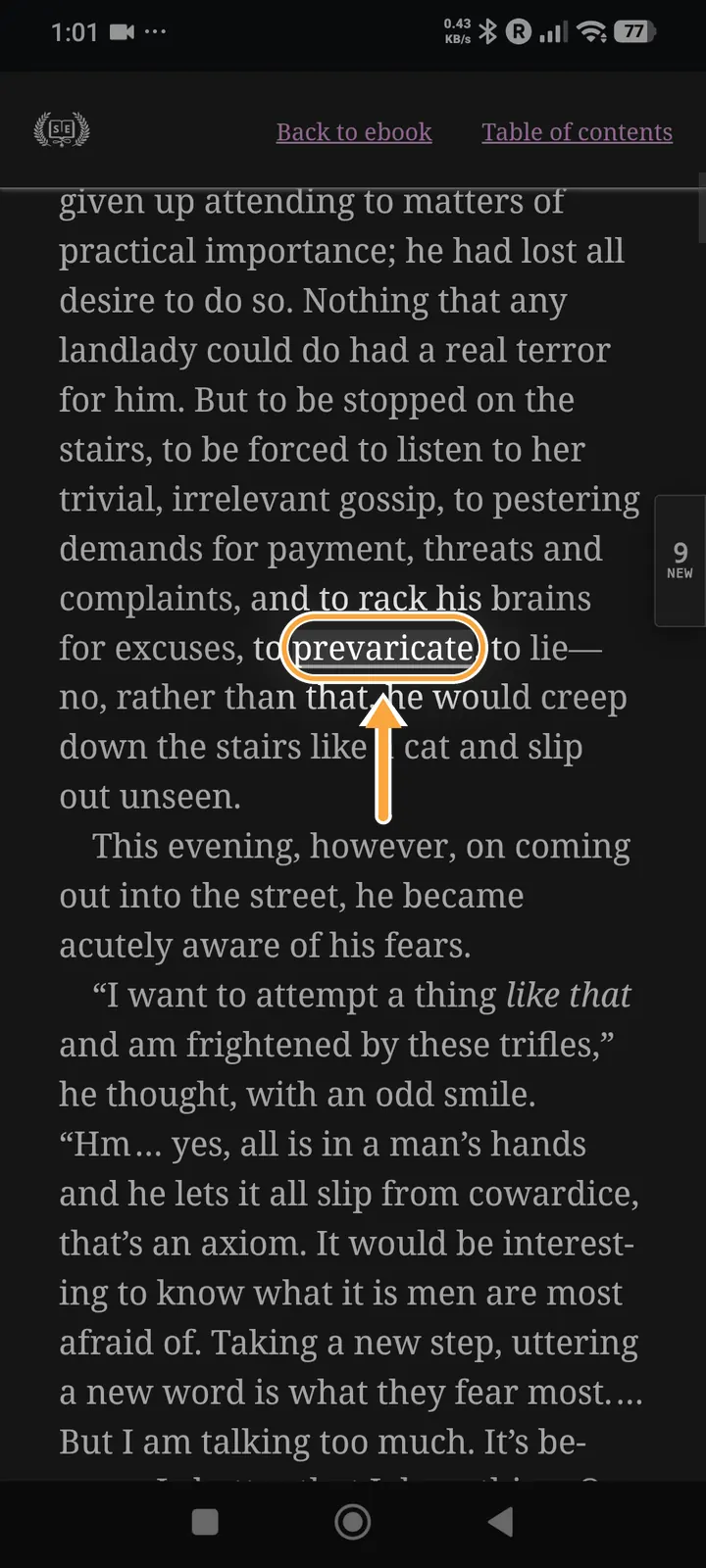
Step 5
Open a page and tap an underlined word
Open any page in English. Words you have not learned yet are underlined; tap one to see what it means and save it to a list.
-
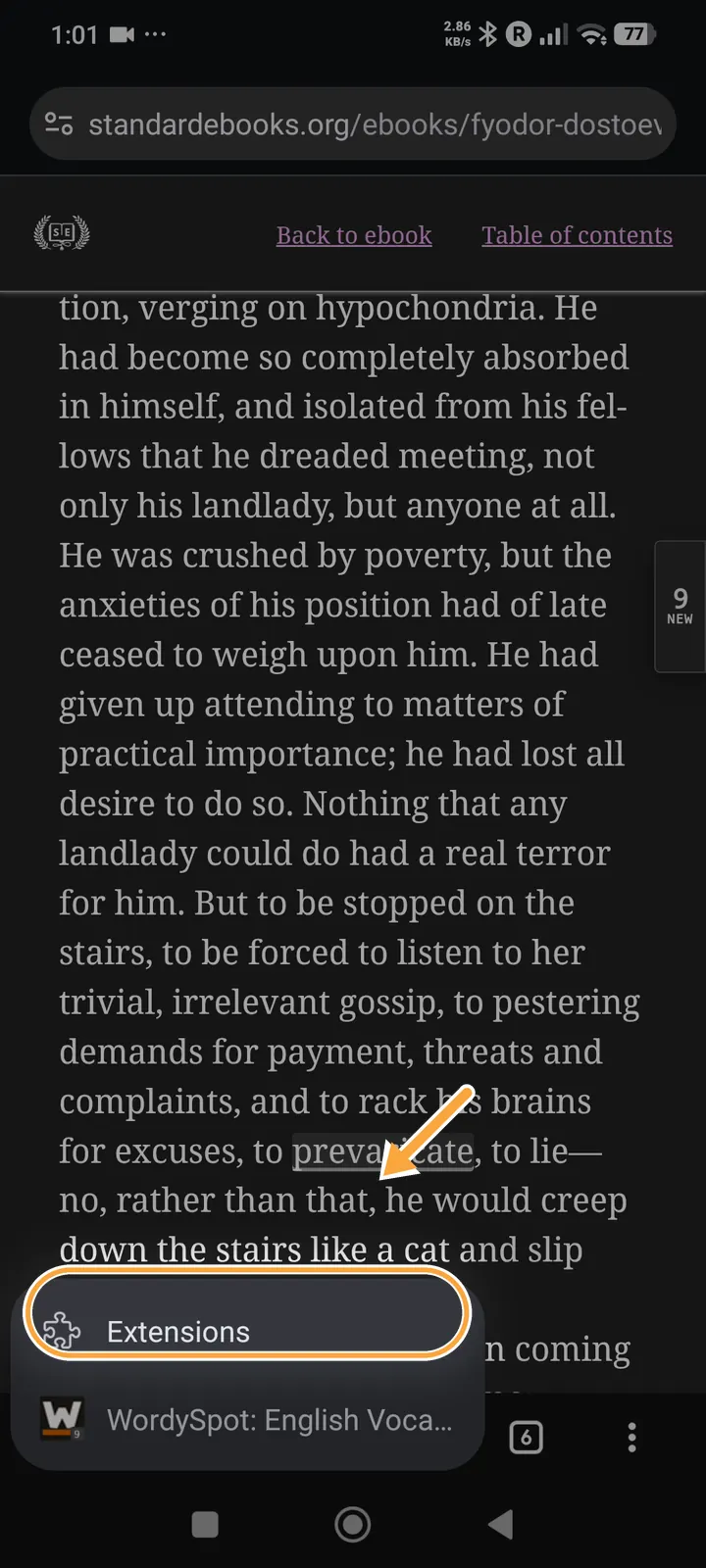
Step 6
Later: manage it from the puzzle icon
Tap the puzzle icon in the bottom bar, then Extensions. The switch next to WordySpot turns it off; Remove deletes it.
Still stuck?
Phones and browsers update often, so a screen may look a little different from the one here. Write to support@wordyspot.com with your browser and the step that went wrong, and I will look.